All
September 16, 2025

How to Update Wrong Opening Hours on Apple Maps (2026 Guide)

Ever had a customer show up after closing because Apple Maps showed the wrong hours? Inaccurate opening times can lead to lost sales, bad reviews, and frustrated guests. The good news: updating your hours is easier than you think—and with Mobal, you can keep every platform in sync with just one click.
Ev charging stations
Published on
December 9, 2025
Key takeaways
  • Accurate opening hours = more customers. Correct information prevents missed visits and improves customer trust.
  • Apple Business Connect is the only official tool to edit your Apple Maps listing.
  • Verification matters. You must verify your business to control edits and publish changes.
  • Inconsistent data = ranking drops. Apple may overwrite your hours if other platforms show different information.
  • Mobal automates everything so your hours stay accurate everywhere without manual edits.
  • If customers have ever arrived at your restaurant or shop only to find the doors locked, there’s a good chance Apple Maps was showing the wrong opening hours. It’s a small detail that can easily cost you a sale, a positive review, or a loyal customer. The good news is that fixing your hours on Apple Maps is straightforward, and once you know where to look, it takes just a couple of minutes.

    Keeping your hours accurate across the internet is also an important ranking factor. When your information is consistent everywhere, Apple is more likely to trust it and show it to users. Here’s how to update your opening hours and make sure they stay correct.

    How to Update Your Business Hours on Apple Maps

    Apple Maps pulls its data from Apple Business Connect, so that’s where all changes start. If you’ve used Google Business Profile before, the process will feel familiar.
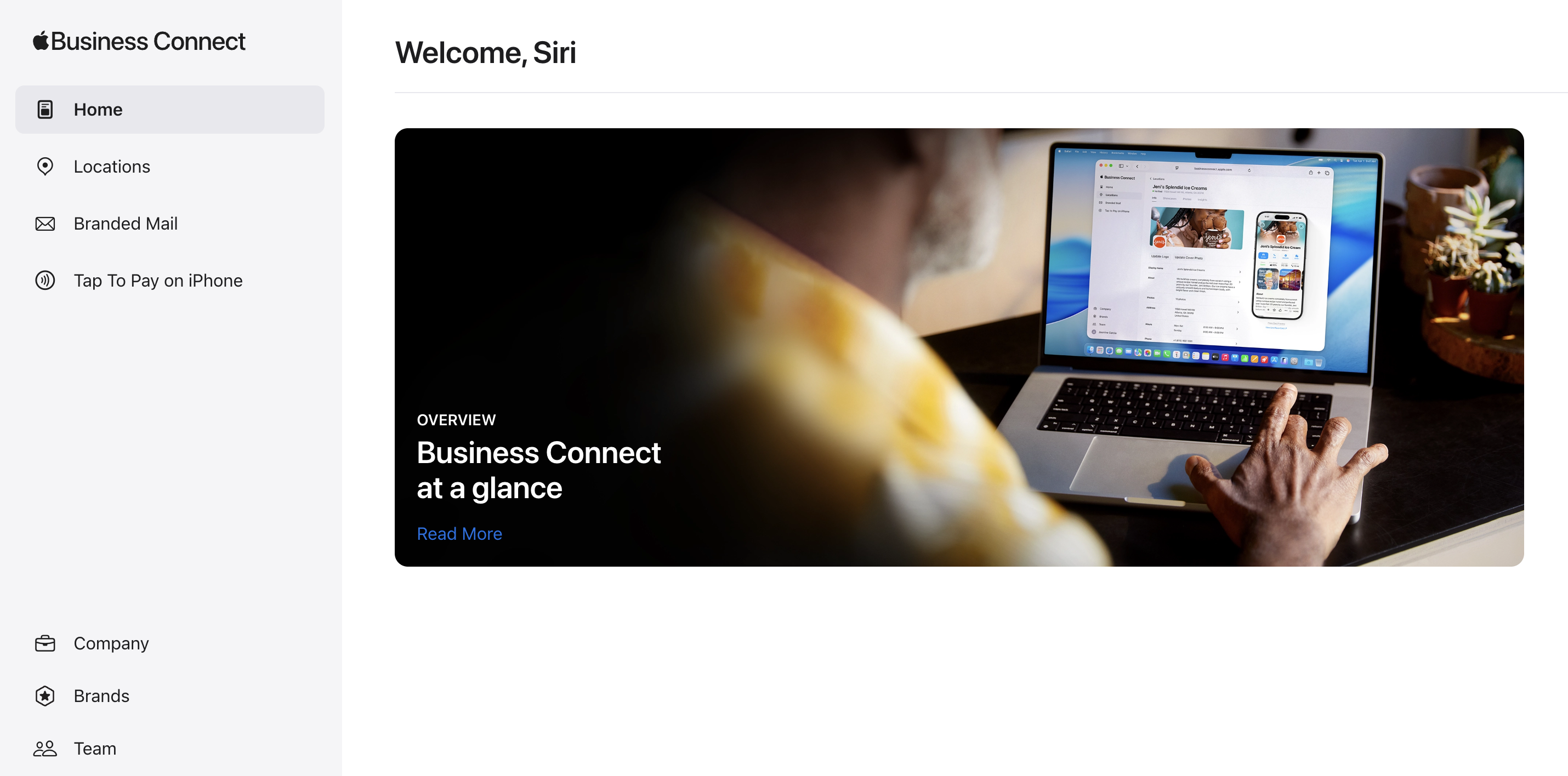
    Step 1: Access Apple Business Connect

    • Start by signing in at businessconnect.apple.com with your Apple ID. If you don’t use a dedicated business Apple ID yet, it’s worth setting one up so your team can access the listing easily.
    • Here you can find info about setting up an Apple ID.

    Step 2: Find Your Business

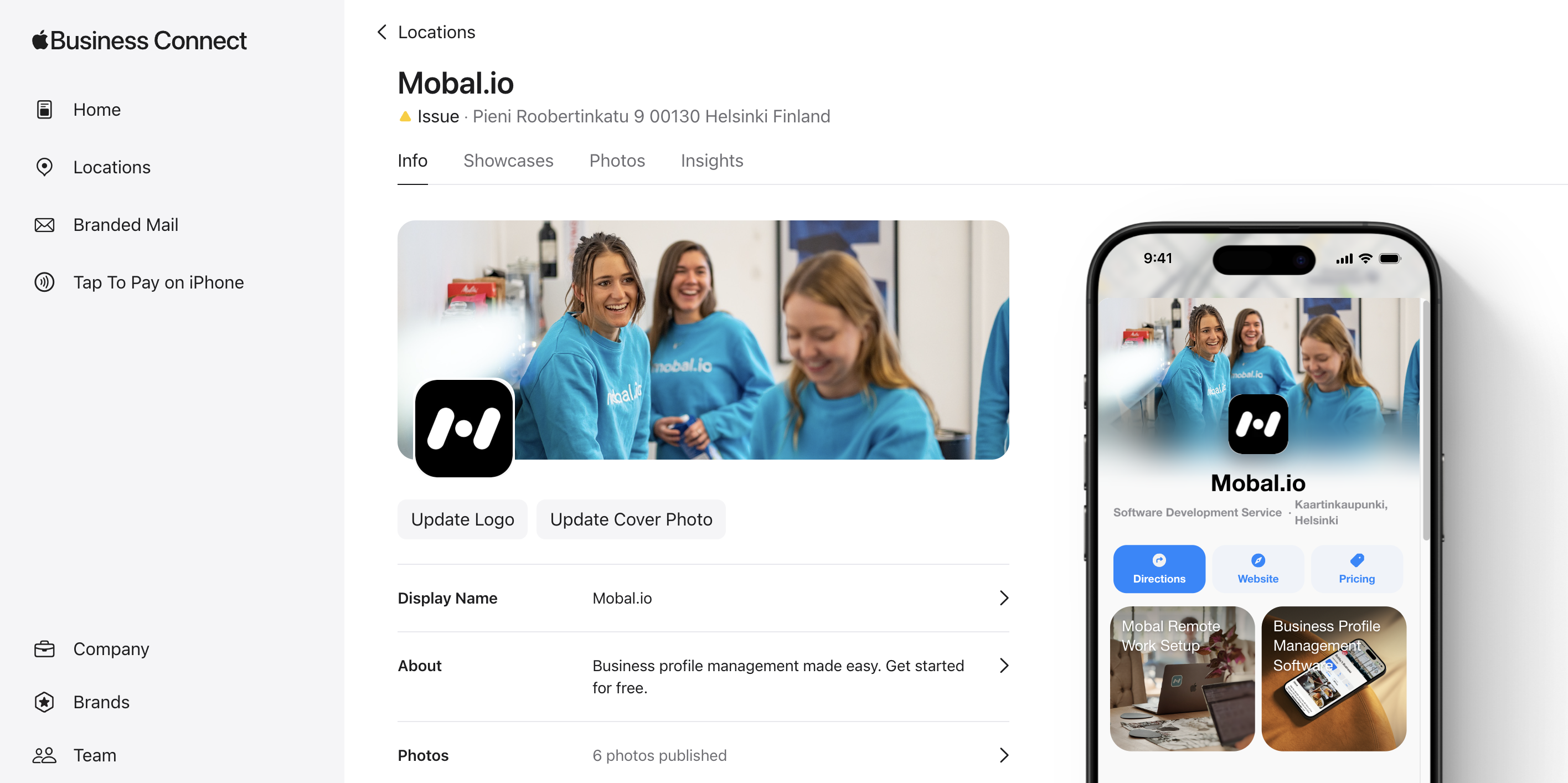
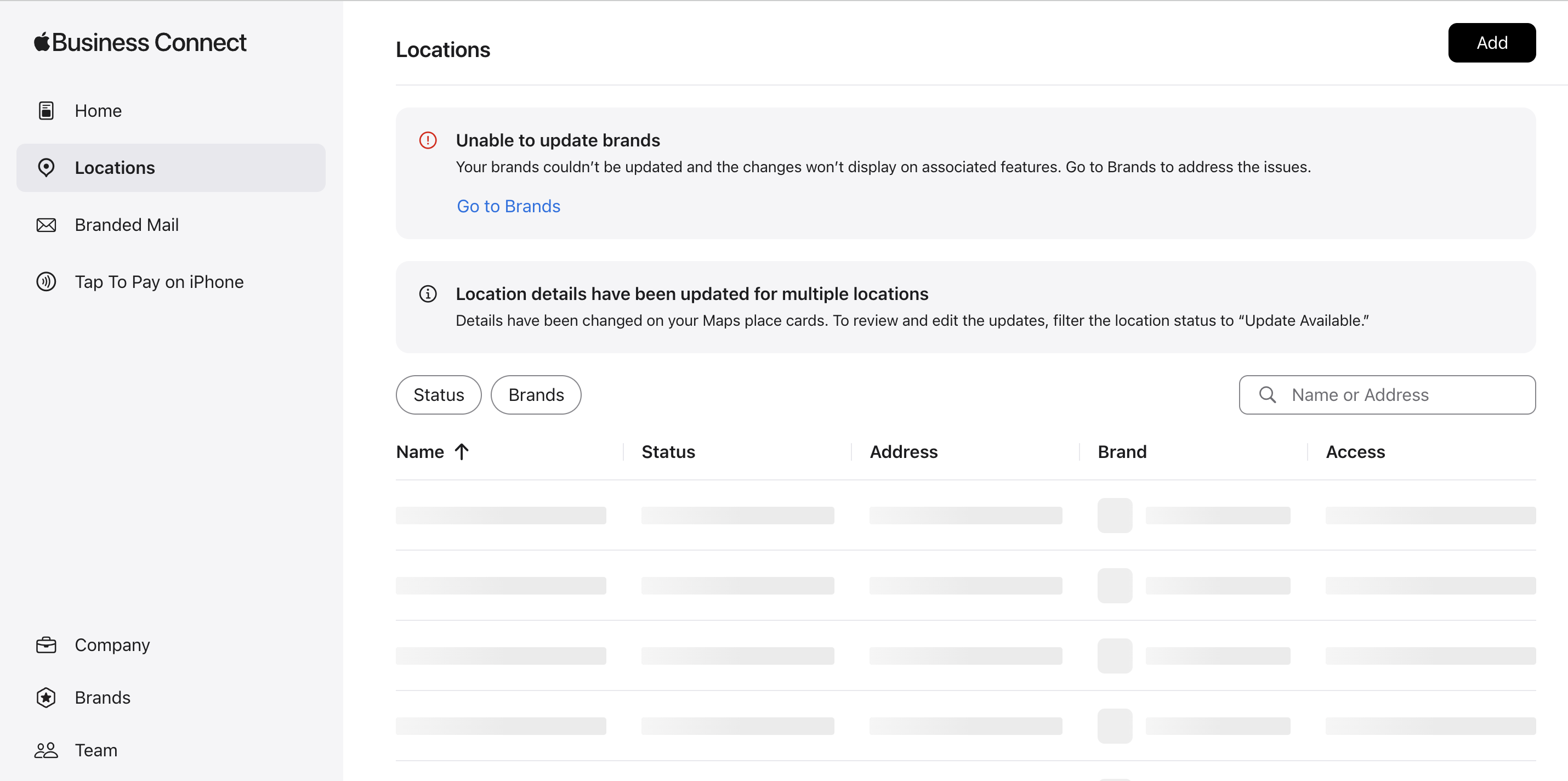
    • Once you’re logged in, open Locations. This is where all your locations live. Choose the location that needs fixing. If your business doesn’t appear, you may need to claim it first.
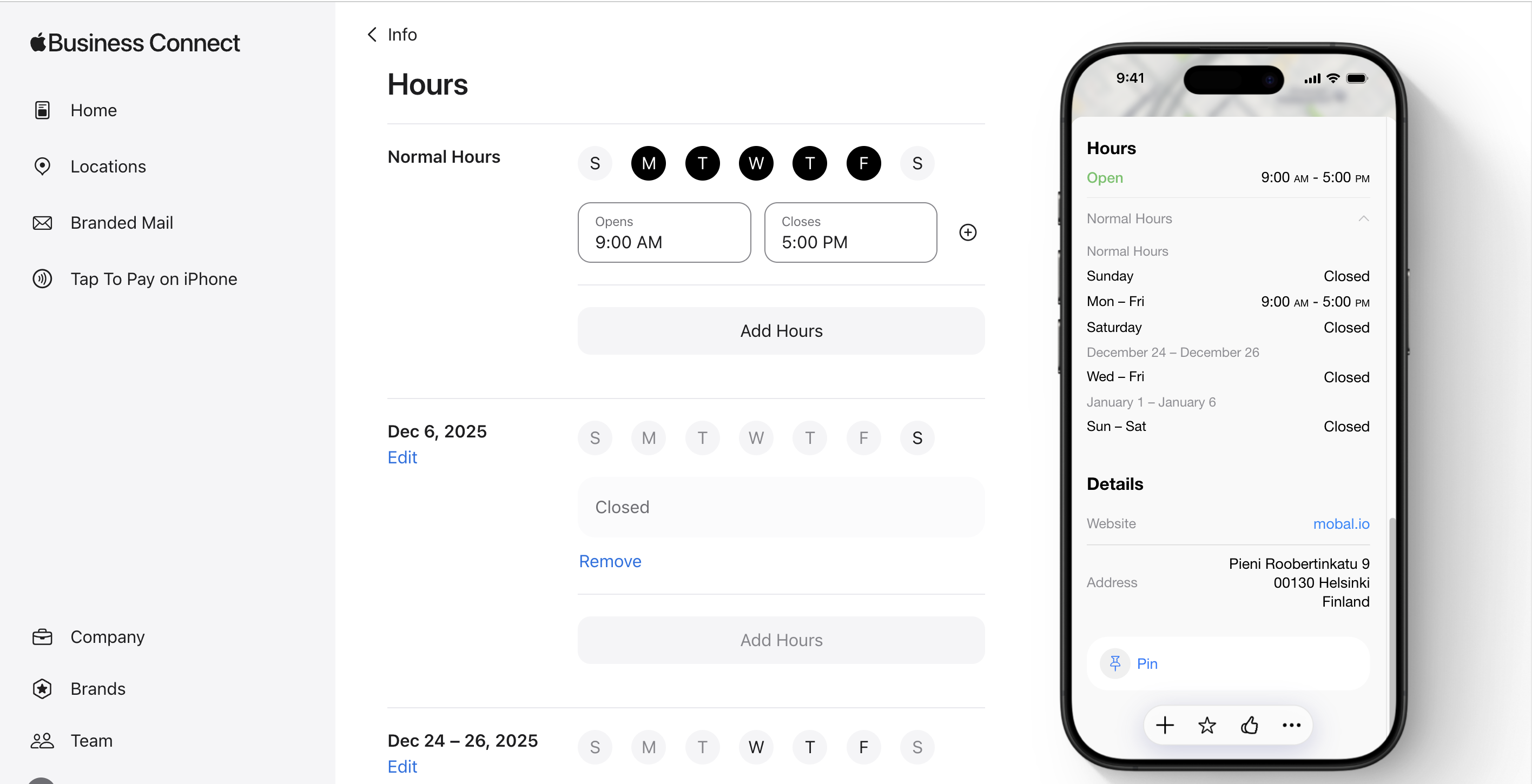
    • Inside the profile, look for the Business Information section under the tab "Info". You’ll find your hours there. Update your regular hours, and if needed, add seasonal hours or special holiday hours. Apple prefers specific times instead of vague notes like “closing early,” so be as clear as possible.

    Step 3: Edit Your Hours

    • Click “Edit” or “Update” in your business profile.
    • Find the section for opening hours and enter the correct times for each day.

    Step 4: Save and Submit

    • Some changes may require you to “Submit for Review.” Follow any on-screen instructions.After you’ve made your changes, hit Save. Some edits publish right away, while others need Apple’s review. If Apple asks you to verify the business, follow the steps, once verified, future edits usually go live within minutes.

    Step 5: Verify and Monitor

    • Watch for email or dashboard notifications from Apple in case further verification is needed.
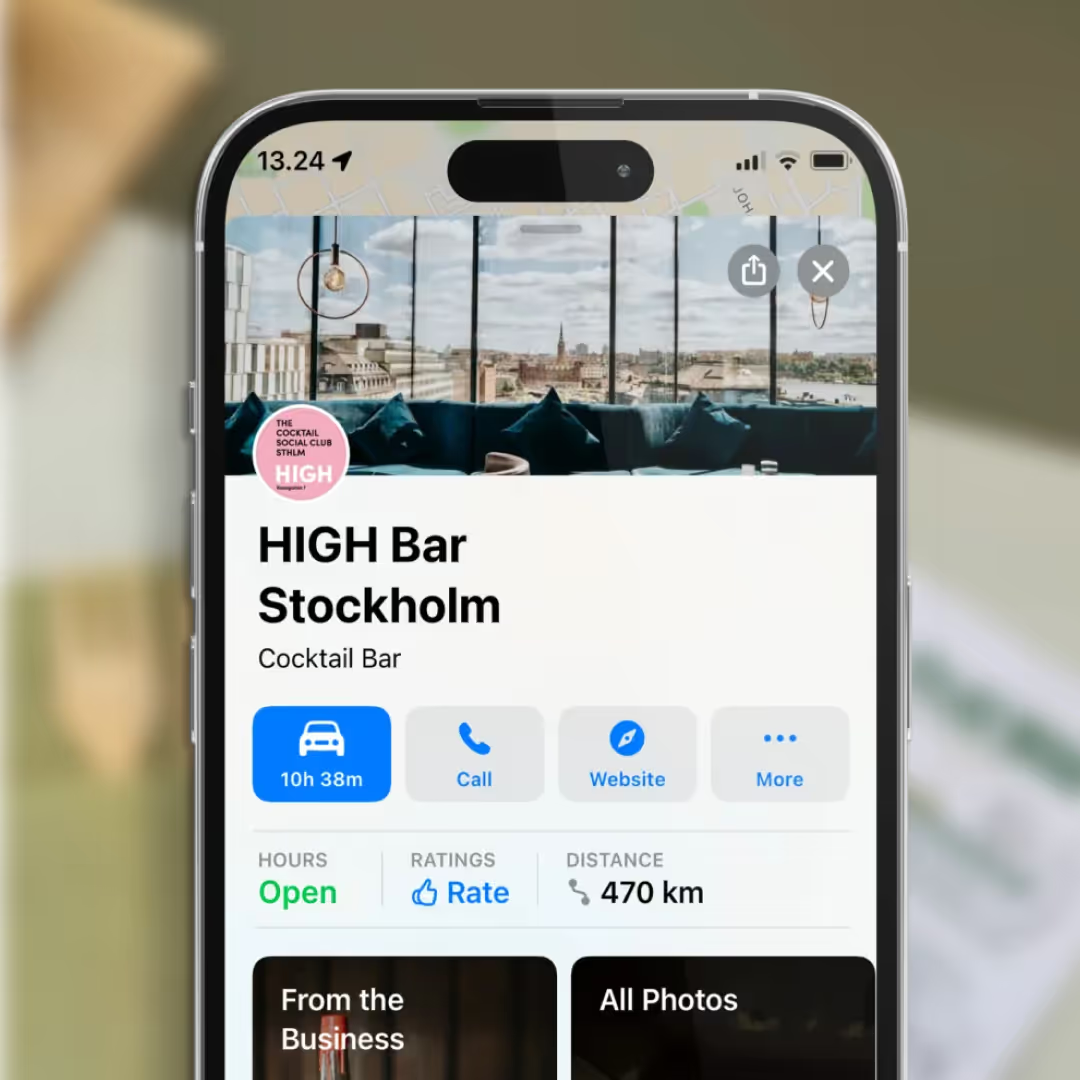
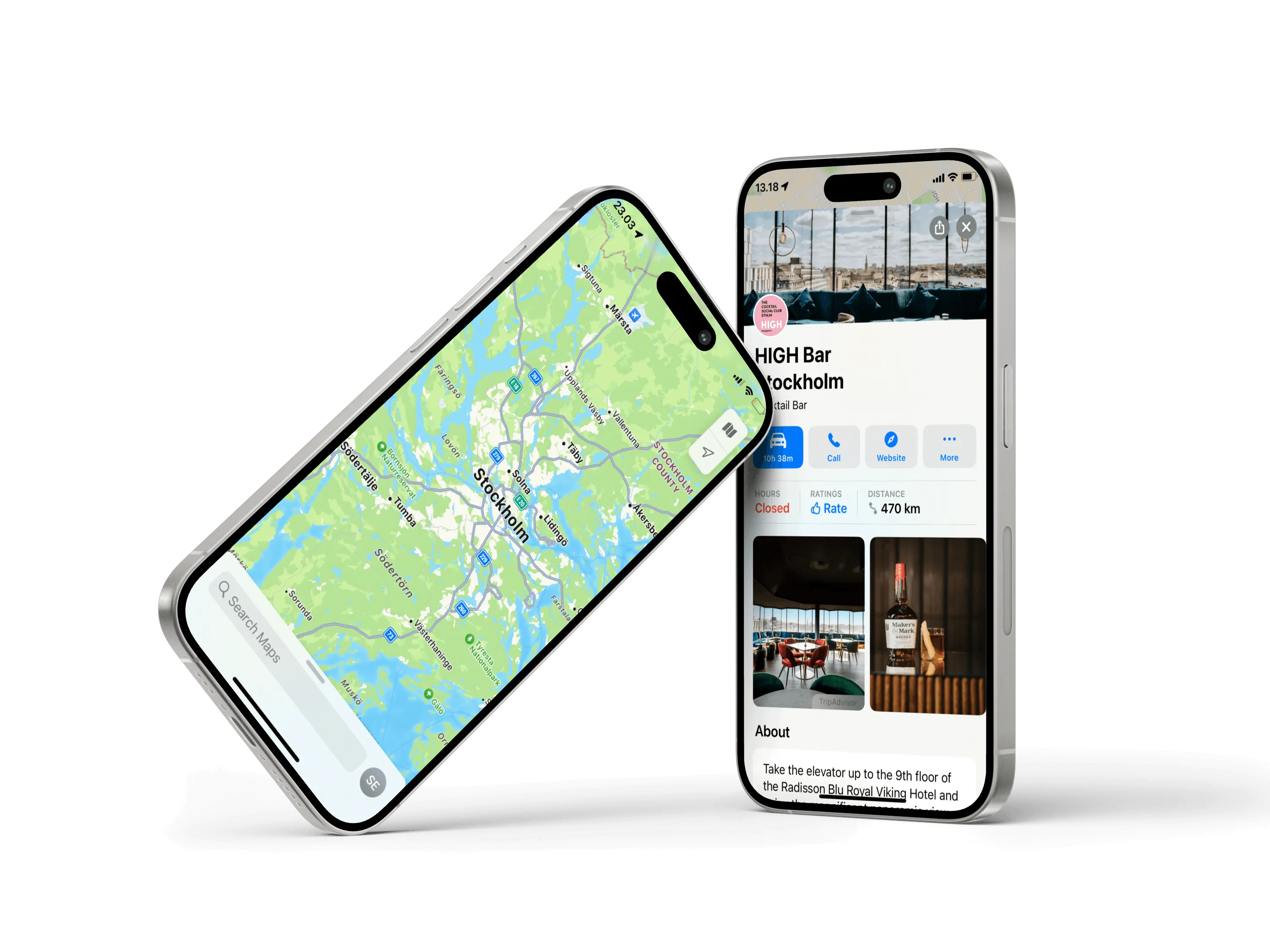
    • To confirm everything worked, open Apple Maps on your phone and search for your business. Your updated hours should appear there once the changes are processed.

    Pro tip: Apple’s official Business Connect help center offers additional support if you get stuck.

    Why Apple Maps Sometimes Gets Your Hours Wrong

    Even if you’ve never touched your Apple listing, your hours can still change. Apple cross-checks information across the web. If your hours differ on Google, Facebook, Yelp, or Foursquare, Apple may assume those platforms are correct and adjust your listing to match them.

    User-submitted edits can also override your information, especially if your listing isn’t verified or hasn’t been updated in a long time.

    This is why some businesses keep finding incorrect hours even after fixing them — Apple is trying to “correct” data that appears inconsistent.

    What to Do If Your Hours Still Don’t Update

    If your hours still look wrong after editing them, check for common issues:
    • You may have duplicate listings that confuse Apple. Merged or outdated locations are a frequent culprit.
    • Make sure your hours match across all major platforms. If Apple sees conflicting information elsewhere, it may not trust your update.
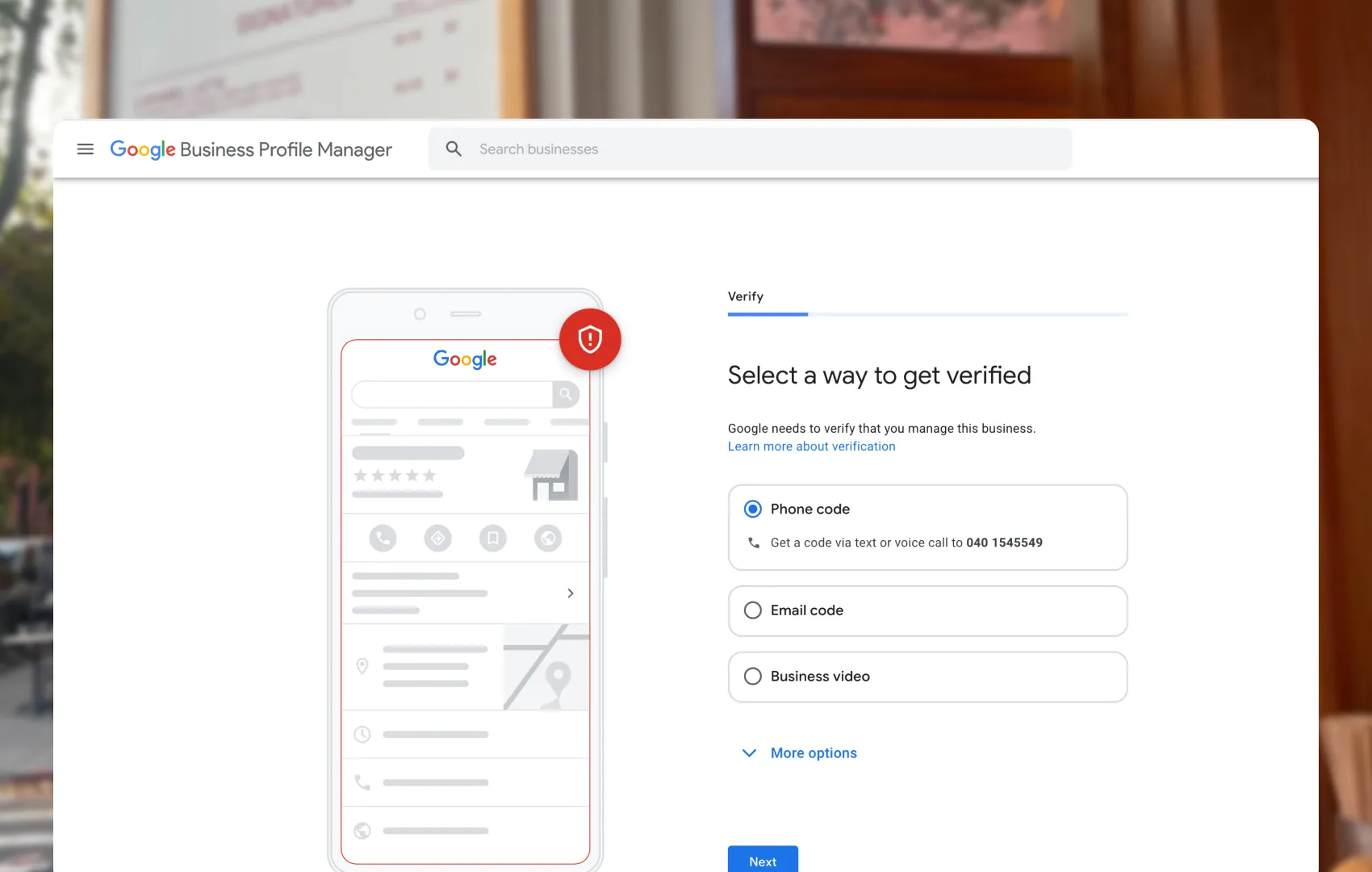
    • Verify that your business is fully claimed and verified inside Apple Business Connect. Unverified listings often get replaced with third-party data.
    • Most of the time, cleaning up duplicates and ensuring consistent hours across the web fixes the problem.

    Tips for Updating Business Hours on Apple Maps

    1. Double-check accuracy:
      Always review your changes before submitting to avoid confusion and disappointment.
    2. Understand the review process:
      Apple may take a few days to verify updates. Be patient and monitor your listing for confirmation.
    3. Stay proactive:
      Regularly review and update your hours—especially before holidays or special events.

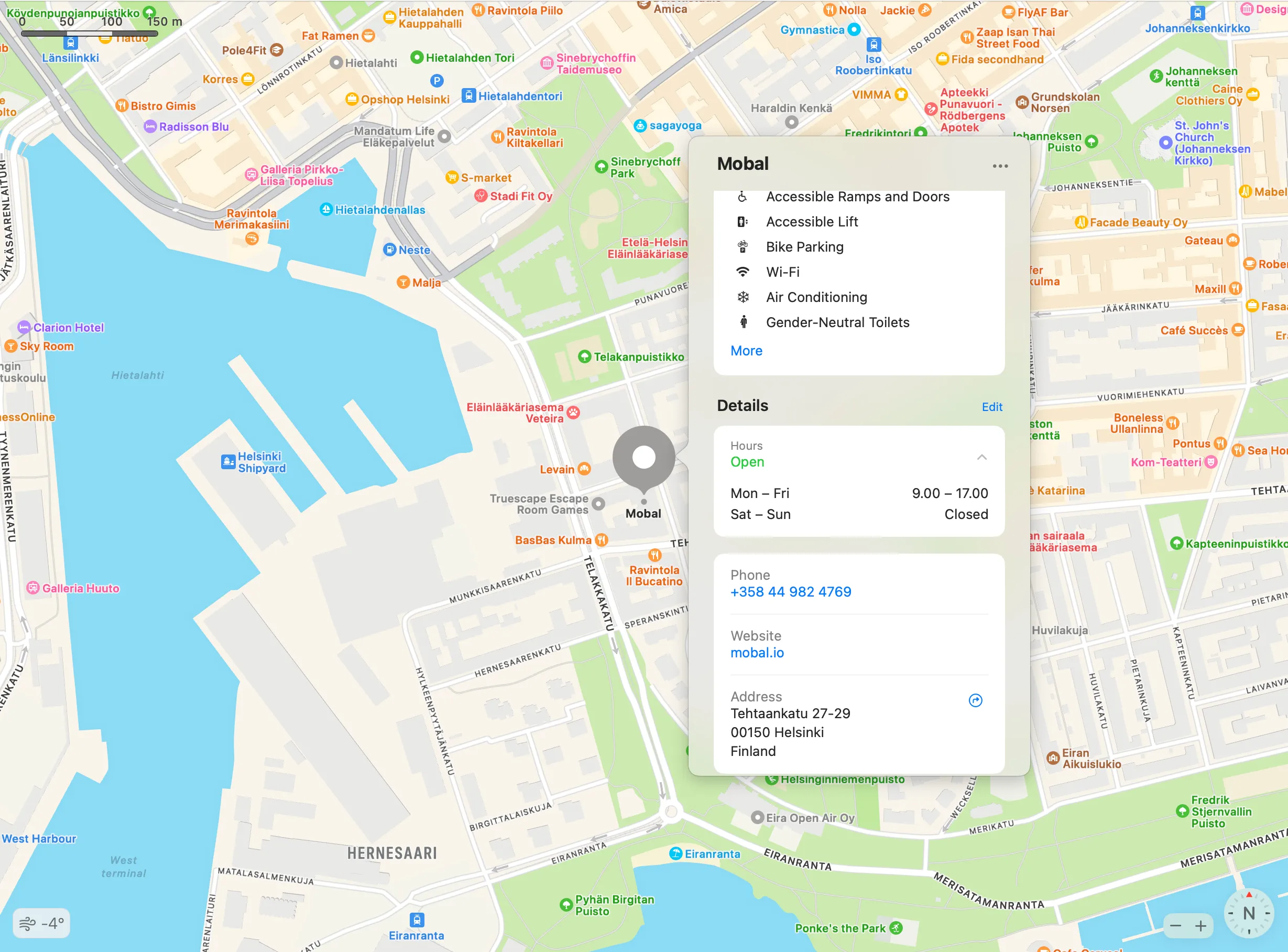
    Screenshot of Apple Maps Profile to update opening hours

    A Simpler Way to Keep Your Hours Correct Everywhere

    Tired of updating every platform by hand? Mobal lets you sync your business hours across Apple Maps, Google, Facebook, Bing, and more—all from one dashboard.

    Updating Apple Maps once isn’t hard. Keeping your hours consistent on every platform, Apple, Google, Facebook, Bing, Yelp, Foursquare, TripAdvisor — is where things break.

    This is exactly why we built Mobal.

    Mobal lets you update your hours once and sync them instantly to every major platform. No more repeating yourself, no more mismatched listings, and no more customers walking up to a locked door because one platform didn’t get the memo.

    For teams managing multiple locations, this isn’t just convenient, it’s a lifesaver.

    With Mobal you can:

    • Update hours for all locations from a single dashboard
    • Push changes to Apple Maps, Google, Facebook, Bing, and more
    • Keep every platform accurate automatically
    • Reduce the risk of bad reviews from outdated information

    Sign-up takes only a few seconds, and you can start on the free plan.

    In Summary

    Keeping your opening hours accurate on Apple Maps means fewer missed customers and a better guest experience. Whether you update manually or use Mobal to automate the process, a few minutes now can save you hours of headaches—and help you win more business.

    Ready to save time and keep your info accurate everywhere? Try Mobal and make business updates effortless.

    Frequently Asked Questions

    How do I edit my business hours on Apple Maps?
    Log in to Apple Business Connect, select your business, and update your hours under the “Edit” section.

    Why are my Apple Maps hours wrong?
    Common reasons include outdated info, user-submitted edits, or changes not being synced across platforms.

    How long does it take for Apple Maps to update business hours?
    Most updates go live within minutes, but some may take up to 24 hours for review.

    Can I update hours for multiple locations at once?
    Yes, with Mobal you can bulk update hours for all your locations from one dashboard.

    What if my business hours change temporarily?
    Use the “Special Hours” feature in Apple Business Connect to set temporary changes for holidays or events.

    Get started  today
    Transform how you do business. Own your digital future.
    Book a free demo
    contact us today
    White Arrow
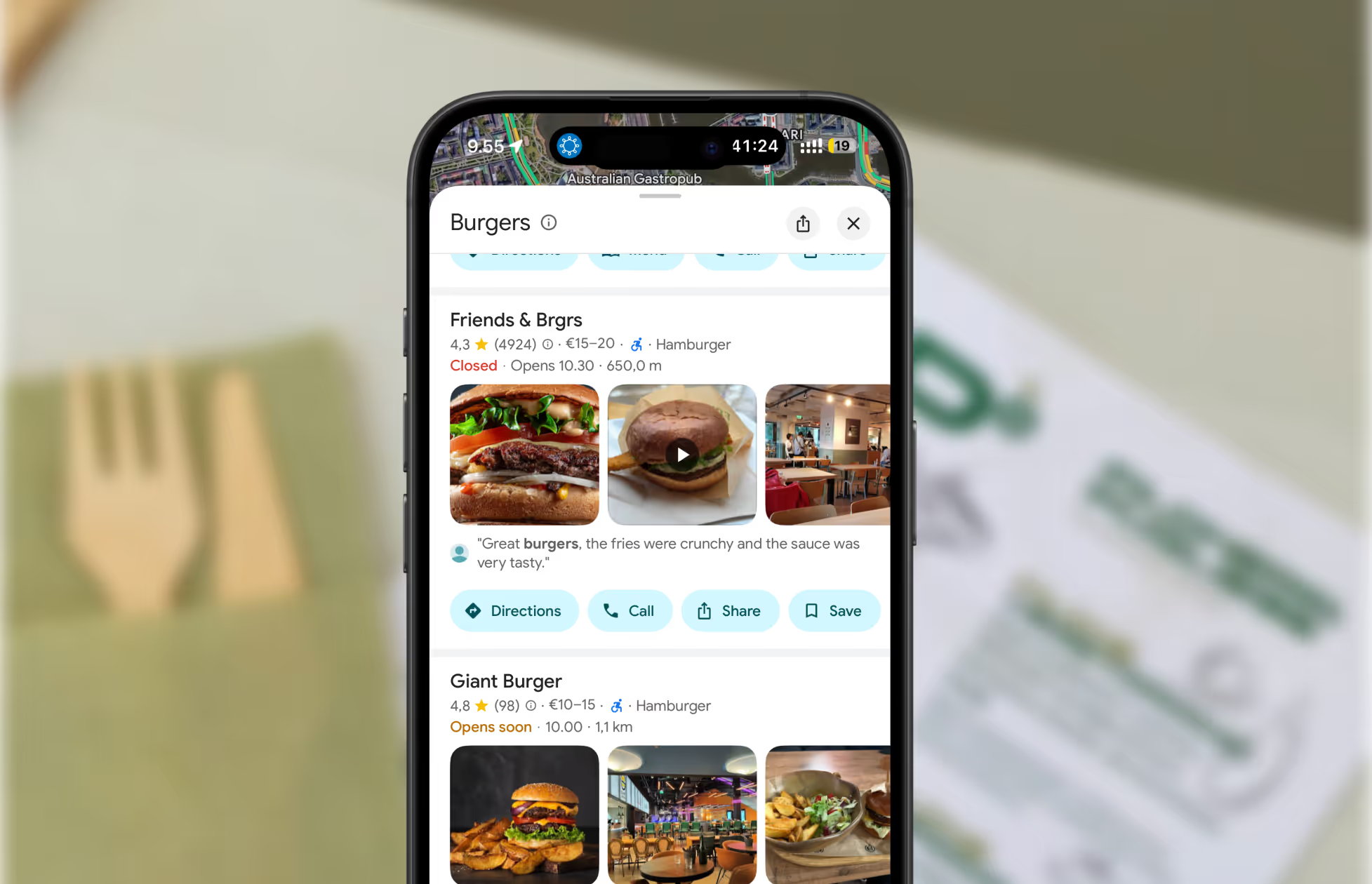
    A screenshot of restaurants on Google Maps.
    See how you stack up against your local competition
    Discover how you stack up against nearby competition and uncover opportunities to win more customers.
    Generate free report
    Read about our privacy policy.
    Thank you! Your submission has been received!
    Oops! Something went wrong while submitting the form.

    Related blog posts

    Join 8000+ businesses reaching more customers online with Mobal

    Save time, reach more customers

    Aitame ettevõtetel veebis nähtavaks muutuda

    Broneeri demo
    Icon
    Icon
    Middle-aged woman outdoors with a pink scarf draped over her shoulders and sunglasses on her head, smiling in a sunny park.
    Three men wearing caps and jackets sitting and conversing on a boat with a foggy harbor in the background.Icon